> For the complete documentation index, see [llms.txt](https://docs.wallid.io/llms.txt). Markdown versions of documentation pages are available by appending `.md` to page URLs; this page is available as [Markdown](https://docs.wallid.io/certishop-webapp/create-a-certificate-template.md).
# Create a Certificate Template
### Choose a Preset Design or Draw your certificate from scratch
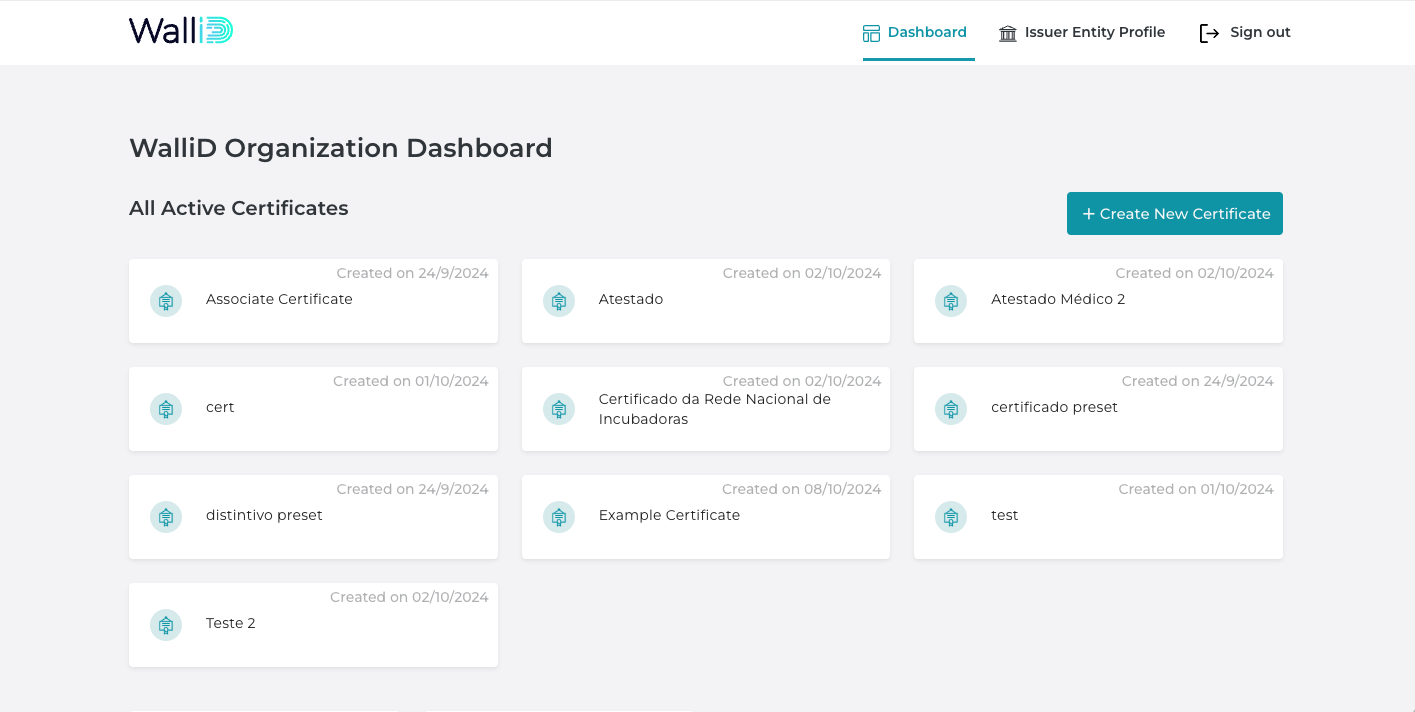
After selecting **`New Certificate`** in the main dashboard you'll be able to choose from one of the options below:
* [**Preset Designs**](#preset-designs): Select a format with pre-filled attributes and placeholders.
* [**Create a Design**](#create-a-design): Customize your certificate's attributes and visuals entirely from scratch.
### Preset Designs
If you select a **Preset Design**, you'll be able to choose from predefined templates that include common fields and design elements. This option allows for faster setup if you’re issuing standard certificates.
### Create a Design
Selecting this option opens the **Template Editor**, where you have full control to customize both the look and the fields of your certificate. The available tools allow you to modify every aspect of the template, including layouts, backgrounds, attributes, and more.
In the Template Editor, you can use the following tools:
#### **Layouts**
Choose the base format of your certificate:
* Horizontal A4 page
* Vertical A4 page
* Circular badge
***
#### **Background**
This option allows you to import an image to use as the background of your certificate. The image will cover 100% of the document size, with all other fields layered on top.
***
#### **Attributes**
These are the text fields in your certificate and are divided into [**Text Attributes**](broken://pages/A64XwdwCHsgOSTYuozQ5) and [**Placeholders**](broken://pages/A64XwdwCHsgOSTYuozQ5):
* **Text Attributes**: These are static fields that appear on every certificate issued under this template. Typically, they represent the issuing entity's name and the titles of the dynamic fields (e.g., "Name").
* **Placeholders**: These are dynamic fields that represent the unique information for each recipient (e.g., \[NAME] for "John Doe"). Placeholders must be typed in **uppercase** and enclosed in **brackets** (e.g., \[PLACEHOLDER]). These fields will be filled in when the certificates are issued, so name them clearly to identify their purpose (e.g., \[NAME] for the recipient's name).
***
#### **Images**
You can upload **.jpeg** or **.png** files, such as logos or other visual elements. These can be resized and positioned anywhere on the certificate.
***
#### **Signatures**
These are either text fields with customizable fonts or uploaded images of signatures from the certificate issuer. You can place the signature anywhere on the certificate.
***
#### **Conditions**
Conditions allow you to set rules for automatic certificate expiration or limited validations. For example, a certificate can expire on a specific date or after a certain number of verifications. Once the conditions are met, the certificate will be automatically revoked.
### Confirm Template and check it in the Dashboard
Once you click **`Create`** to confirm the template’s visuals and attributes, it will be saved and visible in your main Dashboard under the `All Active Certificates` section.
Click on the box with the template’s name to enter the specific area for that certificate template. From there, you can:
* [**Issue certificates**](/certishop-webapp/issue-certificates.md) for that template.
* **Check the status** of each certificate that has been issued.
* **Manage active certificates**, including revoking or updating them as needed.